
User Manual
Detailed guide for using the NICPOINT application for registrars.
1. Introduction
The NICPOINT application is a centralized portal for authorized registrars. It enables simple management of the entire lifecycle of .ba domains. This manual will guide you through the system's functions.
Basic Terms:
- Contact ID
- A unique identifier starting with C0XX and having 10 or more characters, generated incrementally or randomly. Each Contact ID is unique and tied to only one contact in the system.
- NSSET ID
- A unique identifier starting with N0XX and having 10 or more characters. Each NSSET ID is unique and tied to only one NSSET.
- NAME SERVERS
- A set of data containing 2 to 5 nameserver records. These records are linked to a domain name to make it technically active.
- DOMAIN NAME
- A unique label under the national .BA domain assigned to an entity for unique representation on the Internet.
- REGISTRANT
- The user of the domain name. In this system, they have a unique "Contact ID" with the Registrant role assigned.
- ADMINISTRATIVE CONTACT
- A person with a unique "Contact ID" assigned the Administrative Contact role for one or more domains.
- TECHNICAL CONTACT
- A person with a unique "Contact ID" assigned the Technical Contact role. This role involves managing nameservers via an NSSET.
- REGISTRY
- The organization authorized by IANA/ICANN to manage the Country Code Top Level Domain (ccTLD). In BiH, this is UTIC - .BA Domain Registry.
- REGISTRAR
- An organization authorized by the Registry to work with domain name users.
- WHOIS
- Standardized and universally recognizable data about the domain name user.
- AUTHINFO
- The Auth Info code is provided by the Registrar to the user and serves for transfer to another Registrar. Also known as EPP code or transfer code.
The Registrar system concept is based on standard elements:
- CONTACT
- NSSET
- DOMAIN
The creation of elements functions in this order. First, contacts are created, then NSSETs, and finally the DOMAIN itself.
2. System Usage
Logging In
The initial screen allows authorized persons to log in. Authorized persons perform operations on the domain management system on behalf of the Registrar.
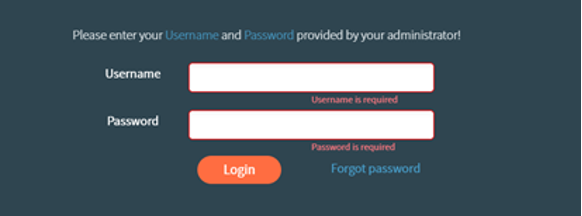 Figure 3: Login Interface
Required credentials (username REG-XXXXXX, password, and certificate) are assigned by the registrar exclusively to authorized employees.
a. Home Screen
The Home screen displays summary information where key data groups can be viewed upon logging in.
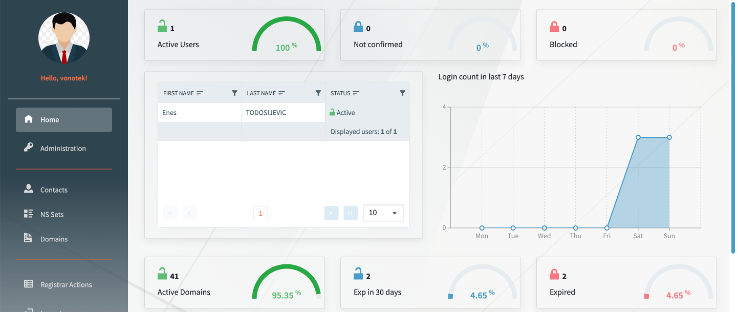 Figure 4: Home screen with data summaries
On the left side of the interface is a menu with categories containing options for managing Domains, Registrants, Administrative, and Technical contacts.
b. Administration
The "Administration" menu section is used to add registrar users and edit registrar data. The "Users" subsection is for adding system users (employees).
3. Contacts
c. "Contacts" - Domain Name Contacts
In the "Contacts" section, contact data is managed. The system is based on creating contacts which are then assigned roles on specific domains.
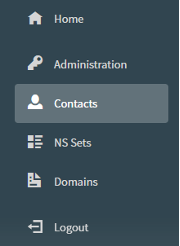 Figure 6: "Contacts" section in menu
Selecting "Contacts" opens a window allowing work with all contacts. New contacts can be entered, existing ones edited, and filtering/search options are available.
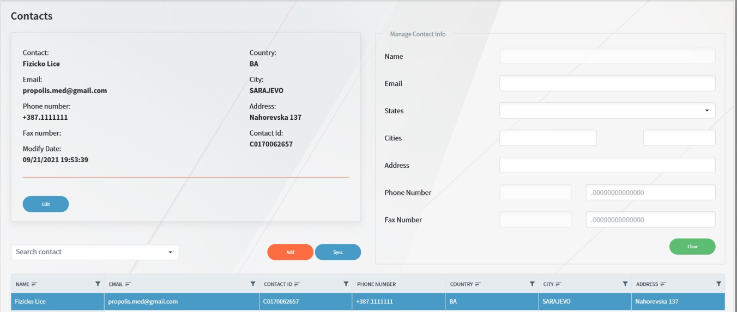 Figure 7: "Contacts" Page
4. NS Sets (Name Servers)
d. "NS Sets" - Domain Name Server Data
The "NS Sets" section is used for adding, searching, and editing NS data for registered domains.
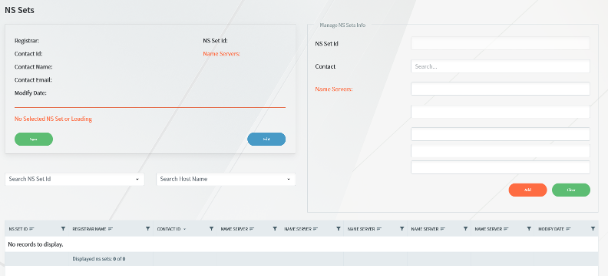 Figure 8: NS Sets Page
5. Domain Management
e. "Domains" Section
The "Domains" section unifies most operations performed by the Registrar.
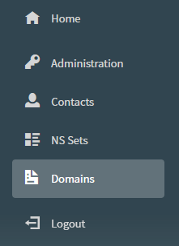 Figure 9: "Domains" Section
Selecting this section opens a window with information on registered domains. Operations available include:
- New Domain Registration
- Domain Transfer
- Domain Renewal
- Change of Domain User (Trade)
- Auth Info code retrieval
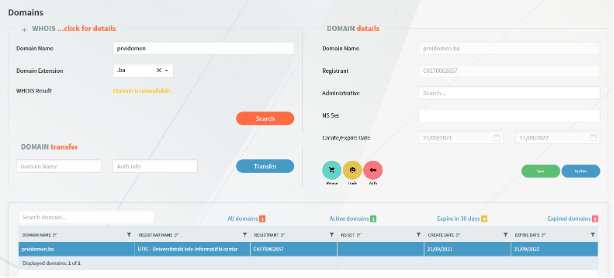 Figure 10: "Domains" Window
Whois data can also be found here.
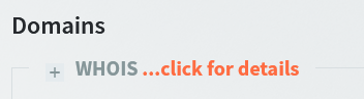 Figure 11: Link to Whois data
II. Basic System Operations
a) CONTACT
Creating contacts is a key operation. Checking if an email exists is the first step.
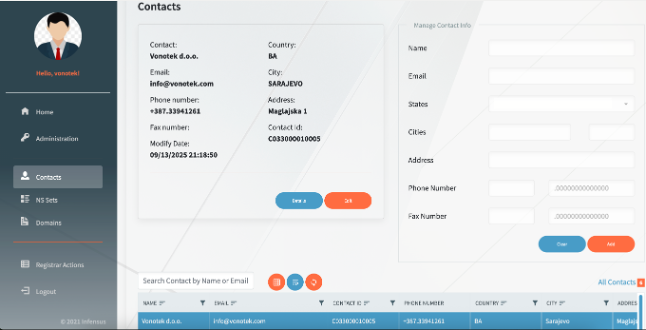 Figure 12: "Add" button
Clicking "Add" opens a window to check the email address.
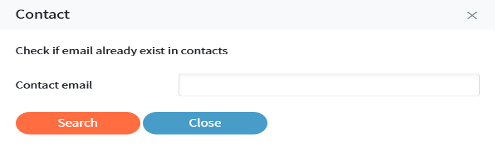 Figure 13: Email check field
If the email exists, a message appears in the top right.
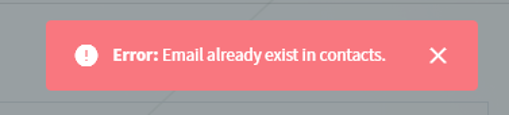 Figure 14: "Email address already exists" message
If not, a new contact form opens.
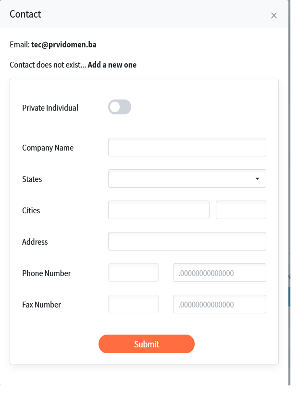 Figure 16: Contact creation form
b) NSSET
To make a domain active, NS records (Name Servers) must be assigned via an NSSET. An NSSET consists of a technical contact and a set of NS records.
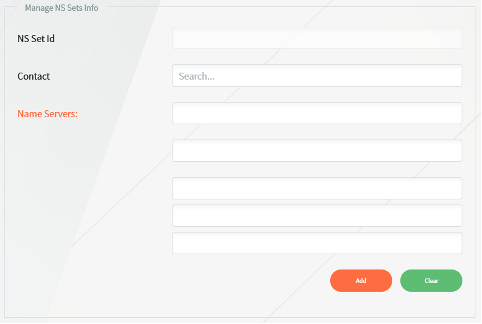 Figure 17: Email check for NS Contact
Adding NS records:
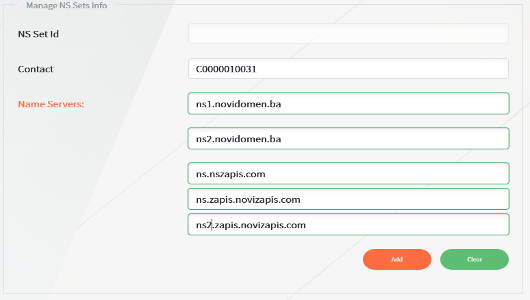 Figure 19: NS records
c) DOMAIN
Operations include:
- Availability Check
- Registration
- Renewal
- Trade (Owner Change)
- Transfer
- Auth Info Retrieval
- Whois Check
i. Domain Availability Check
Enter the domain name and select the extension.
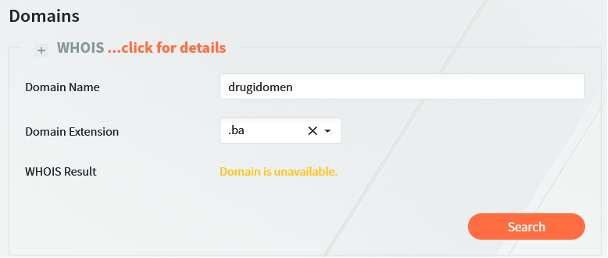 Figure 20: Availability check fields
Result: Available (Green) or Unavailable (Yellow).
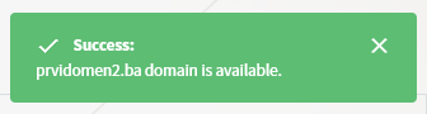 Figure 21: Domain is available
ii. Domain Registration
If available, proceed to registration by adding Registrant, Admin Contact, and NSSET.
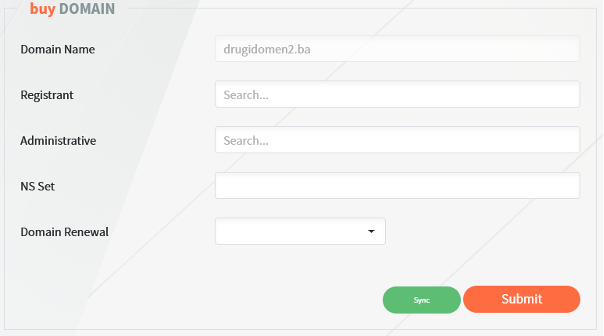 Figure 23: Domain Registration
iii. Renewal
Domains can be renewed for 1 to 5 years.
 Figure 27: "Renew" button
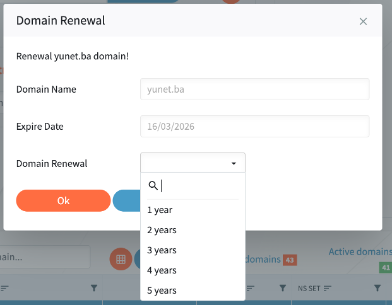 Figure 28: Selecting renewal period
iv. Trade (Owner Change)
Changing the domain user (Registrant).
 Figure 29: "Trade" button
v. Transfer
Transferring a domain from another registrar requires the Domain Name and AuthInfo code.
 Figure 32: Domain Transfer
vi. Auth Info Retrieval
Retrieving the code to transfer a domain to another registrar.
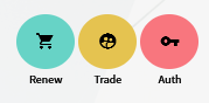 Figure 34: Auth Info button
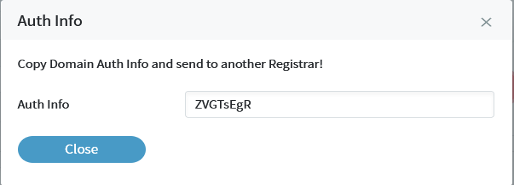 Figure 35: Auth Info code display
III. ADDITIONAL OPTIONS AND SYSTEM FEATURES
A. Using Search Filters
Advanced filtering, sorting, and pagination are available in all "large" tables (Contacts, NS Sets, Domains).
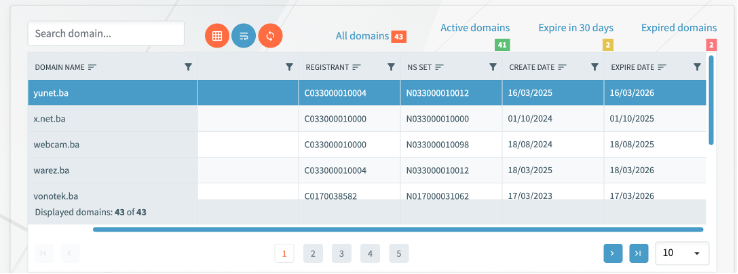 Figure 38: Table at the bottom of the window
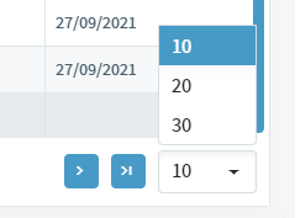 Figure 40: Pagination and row count selection
Columns can be sorted ascending or descending.
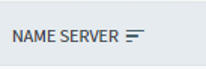 Figure 41: Sorting
Filters allow specific search criteria.
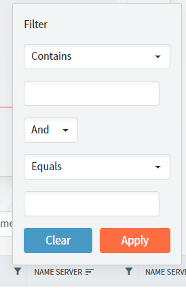 Figure 43: Search criteria
B. REGISTRAR ACTIONS
A list of all actions performed by the Registrar towards the Registry via EPP.
7. WHMCS Installation
NICPOINT offers an official registrar module for the WHMCS platform, enabling full automation of .BA domain sales.
Setup Steps
- Download the module from the Reseller page.
- Extract the content to your WHMCS directory:
/modules/registrars/nicpoint/. - In WHMCS administration, go to System Settings > Domain Registrars.
- Activate the Nicpoint module and enter your credentials.
Note: API URLs are pre-configured in the module, so you only need to enter your username and password provided by the NICPOINT team. For testing, use the Sandbox module and Sandbox credentials.